Passkeys are created and used as follows:
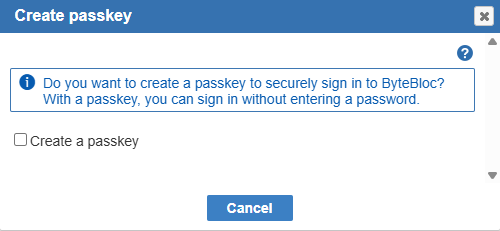
After logging in using the standard username and password method, the user will see a pop-up asking if they want to create a passkey. The pop-up is shown only once.
Passkeys are available when using the web app. They are not supported in the mobile app. In the mobile app, biometric authentication can be used instead.
When a passkey is created, it will be usable from the browser used when it was created. When there is a password manager that replicates passwords and passkeys across devices (e.g., through a Google or iCloud account), the passkey will also be available on the devices where it is replicated.
In general, and unless a third-party cross-browser password manager is used, a passkey created in one type of browser (e.g., Chrome) will not be available in another type of browser (e.g., Edge). Also, not all browser/device combinations allow the creation of a passkey (e.g., Edge on a Windows machine without 'Hello' available).
Once a passkey is created, the login screen will offer the option to use the passkey to sign in. There is no way to check whether the device used can use the passkey created by the user, so in some cases, the passkey cannot be used to log in (e.g., in the case of a passkey created on Chrome and then trying to use the passkey from Edge). In such a case, a passkey should be created for each browser.
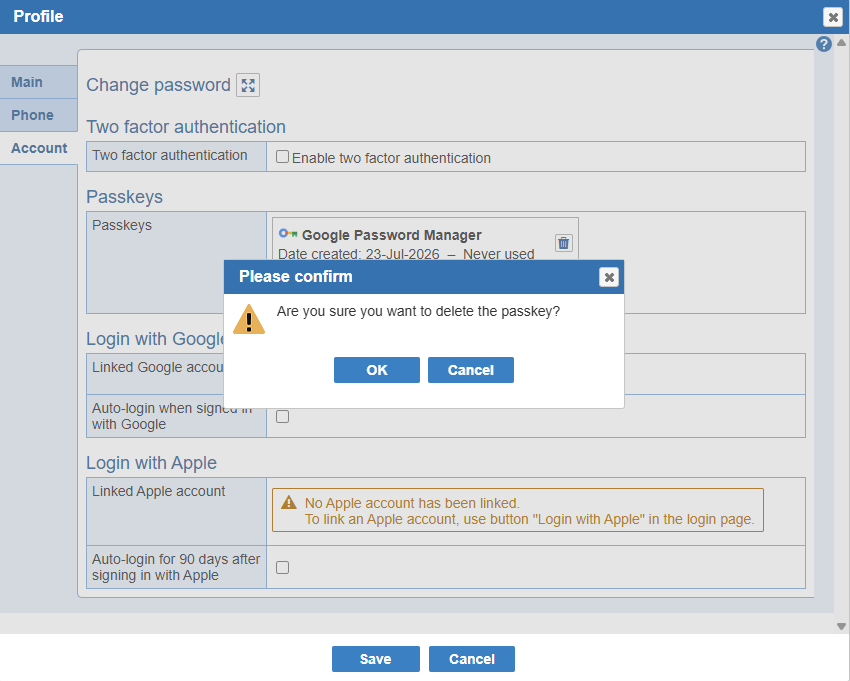
Users can manage their passkeys from the 'Profile' screen, 'Account' tab. The page allows the deletion of Passkeys and the creation of new passkeys. After a passkey is deleted, it can no longer be used to log in. A new passkey can be created for a new device (e.g., a new browser or a new computer). A user can have up to 10 passkeys.